Confetti FX Tools
A downloadable asset pack for Windows and macOS
🎉 Confetti FX Tools is a comprehensive and user-friendly solution for integrating vibrant, dynamic, and fully customizable confetti effects into your Unity projects. Whether you’re celebrating player achievements, in-game milestones, festive events, or interactive experiences, this tool provides everything you need to create eye-catching confetti explosions with minimal effort.
With Confetti FX Tools, you no longer need to spend time manually setting up complex particle systems—this tool offers ready-made prefabs, an intuitive Confetti Spawner Tool (Editor Window), adjustable color palettes, multiple confetti models, and built-in sound integration, ensuring a truly immersive celebration experience.
🚀 We’d love to hear your feedback! If you’ve tried Confetti FX Tools, please take a moment to fill out our short survey and share your thoughts. Your input will help us improve and bring even better features in the future!
👉 https://docs.google.com/forms/d/e/1FAIpQLSfhVTzO_AvQdHkNXLi60xCFmnQuhln7o8LkMq8-...
Thank you for your support! 🎊
🌟Key Feutures
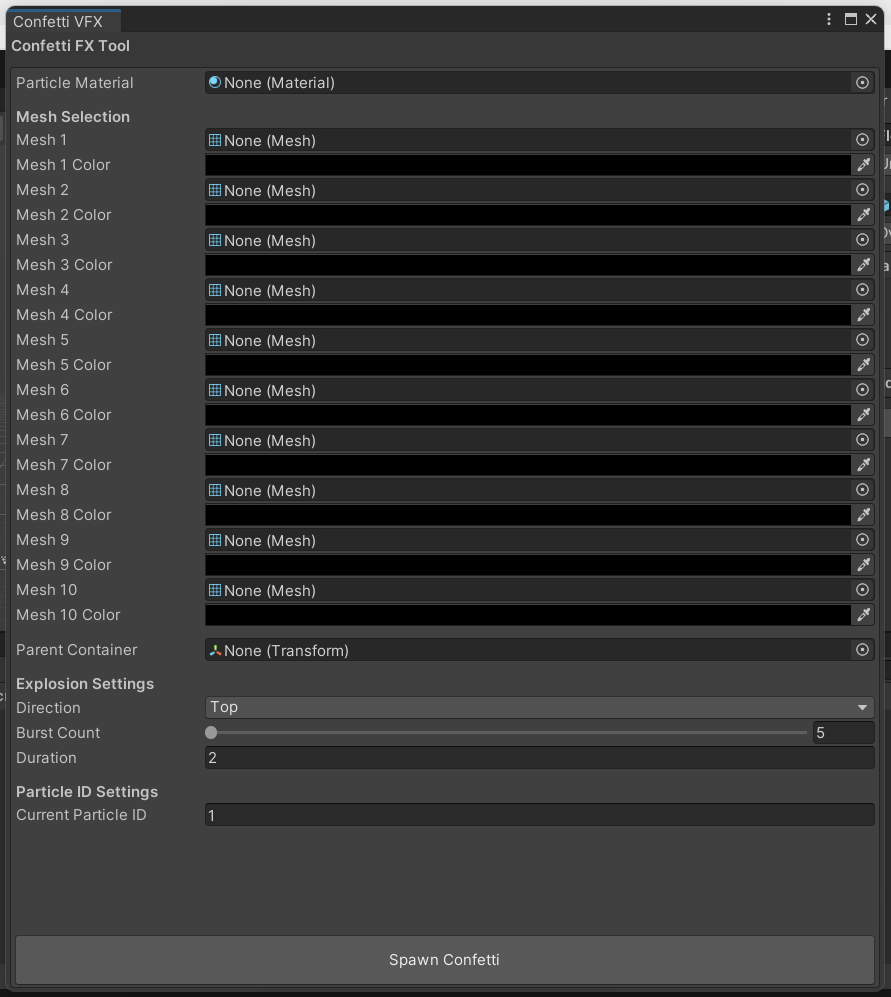
✅ Confetti Spawner Tool (Editor Window) – Say goodbye to tedious particle system setups! The Confetti FX Tool comes with an easy-to-use Editor Window that allows you to instantly spawn confetti effects within your Unity scene. Simply access the tool via Tools > Confetti FX in the Unity menu and start generating confetti with just a few clicks.
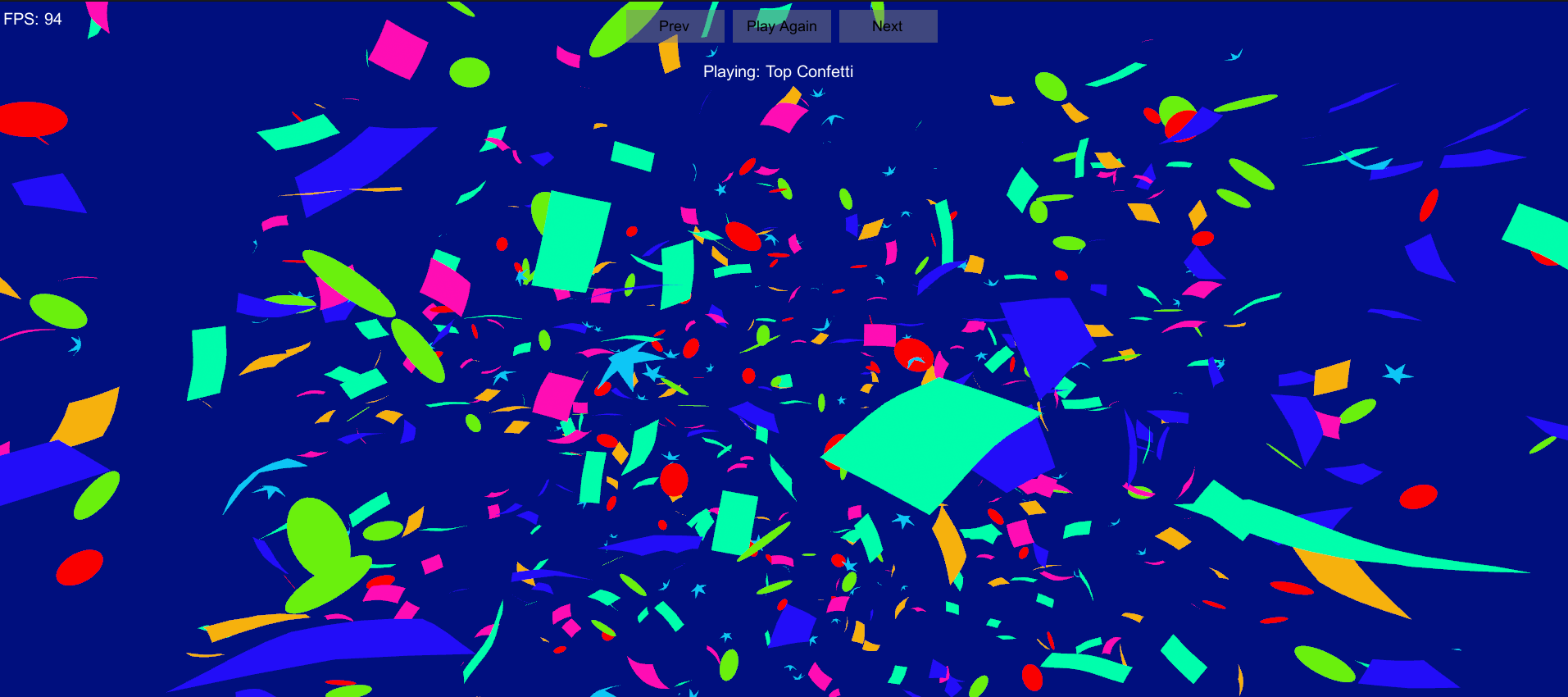
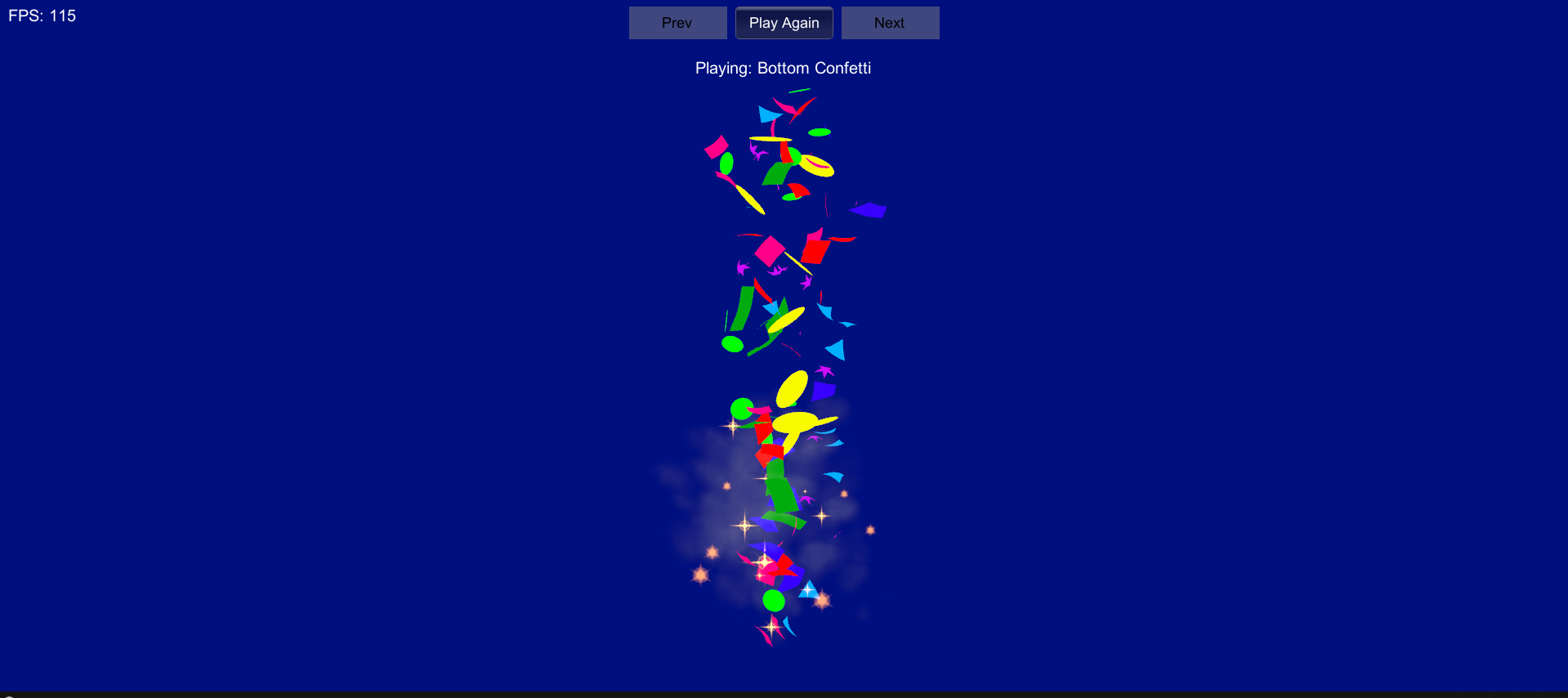
✅ Playable Demo Scene Included – Want to see Confetti FX in action before implementing it into your project? A fully configured demo scene is included, showcasing various confetti styles, explosion patterns, and customizable settings to help you explore the tool's capabilities.
✅ Pre-Made, Drag-and-Drop Prefabs – No need to build everything from scratch! The package includes a collection of ready-to-use confetti prefabs that can be dragged and dropped directly into your scene or spawned dynamically using the Confetti Spawner Tool.
✅ Highly Customizable Effects – Tailor your confetti to match the theme of your game! You can adjust colors, shapes, particle sizes, emission rates, and explosion directions directly from the Spawner Tool, allowing you to create unique effects that fit your project’s style.
✅ Scripting & Event-Based Activation Support – Need confetti effects to trigger at specific moments in your game? The Confetti FX Tool supports C# scripting and Unity events, enabling developers to activate confetti bursts via code when players achieve goals, win matches, or complete challenges.
🚀How It Works
1️⃣ Open the Confetti Spawner Tool – Navigate to Tools > Confetti FX in the Unity Editor to access the built-in Spawner Window. From here, you can customize and generate confetti instantly without needing to manually create particle systems.
2️⃣ Load the Demo Scene – Explore the included demo scene to test different confetti effects, tweak settings, and see how the tool can be implemented in your projects.
3️⃣ Drag & Drop Prefabs into Your Scene – If you prefer a quick setup, simply use the pre-made confetti prefabs provided in the package. Drag and drop them into your scene, and they’re ready to go!
4️⃣ Trigger Confetti via Script or Game Events – If you want more control, you can spawn confetti effects dynamically via C# scripting. Call the confetti system within your game logic to activate celebrations at key moments, such as winning a game, unlocking achievements, or finishing a level.
Download
Install instructions
Installation Instructions for ConfettiFXToolsV02.unitypackage in Unity
Step 1: Download the Package from itch.io
- Open the itch.io page where ConfettiFXToolsV02.unitypackage is available.
- Click the Download button and save the file in an easily accessible location.
Step 2: Open Your Unity Project
- Launch Unity Hub and open the Unity project where you want to install Confetti FX Tools.
- Ensure that your project is using Universal Render Pipeline (URP) if the effects in the package require URP.
Step 3: Import the Package into Unity
- Open Unity Editor and go to Assets > Import Package > Custom Package.
- Select the downloaded ConfettiFXToolsV02.unitypackage file.
- Click Open to start the import process.
Step 4: Select Files to Import
- Unity will display a list of all assets in the package.
- Make sure all the necessary files are checked, then click Import.
Step 5: Verify the Installation
- After the import is complete, open the Project Window and ensure that the ConfettiFXTools folder is present.
- Try using the tool by navigating to Tools > Confetti FX in the Unity menu (if using an EditorWindow).
- If you encounter any errors, check the Console Window to ensure that no dependencies are missing.
Step 6: Using Confetti FX Tools
- Follow the documentation or tutorial included in the package to start using confetti effects in your project.